Gas Station
Overview
The Gas Station is a dedicated Vault that automatically tops up gas for enabled Vaults, ensuring transactions continue smoothly without failing due to insufficient gas.
- How to Set Up the Gas Station Vault
- How to Use the Gas Station Vault
- What chains are supported by the Gas Station
- Disable Gas Station for selected Vaults
IMPORTANT: If you have not activated the Gas Station yet, please contact clients@hextrust.com to have it activated.
Key Features
- Enabled by the Admin: The Admin can enable the Gas Station only after it has been activated by Hex Trust. (Click here to view User Roles.)
- Automatic Funding: When a Vault does not have enough assets to cover gas fees, the Gas Station Vault automatically provides the required gas amount.
- Single Vault Per Client: Each Enterprise is allocated one dedicated Gas Station Vault.
- No Approval Required: Automatic funding to your Vaults from the Gas Station does not require approval.
- Deposit: You can deposit assets into your Gas Station at any time.
How to Set Up the Gas Station Vault
- You must have an Admin User Role.
- Reach out to your dedicated Relationship Manager or clients@hextrust.com to activate this feature.
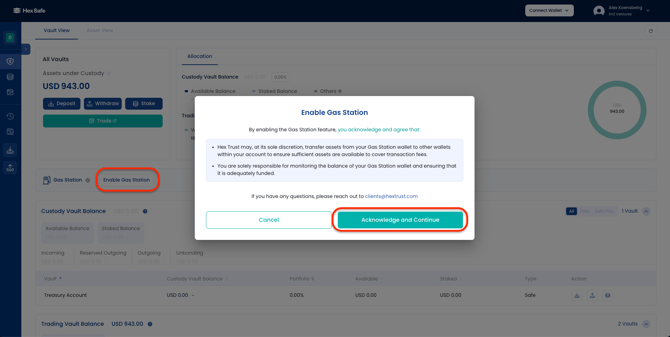
- Go to your Hex Safe dashboard and click "Enable Gas Station".
- Read and accept the Terms and Conditions.
- Approve the action on your Hex Safe Mobile App.
How to Use the Gas Station Vault
1. Depositing Funds
- Identify your Gas Station Vault in the Hex Safe dashboard.
- Top up your Gas Station by transferring assets into it, the same way you would for any other Vault.
- Once completed, the Gas Station will automatically top up other Vaults according to your configuration.
- For a detailed guide on depositing assets to your Vault, click here.

2. Setting up Thresholds
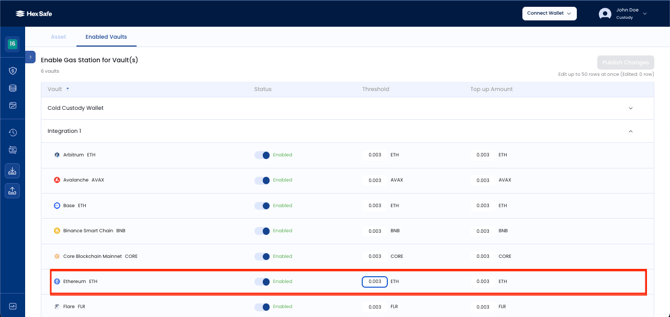
- Go to your Gas Station and identify the Vault where you want to set the threshold.
- To set up your thresholds, click the "Edit" button.
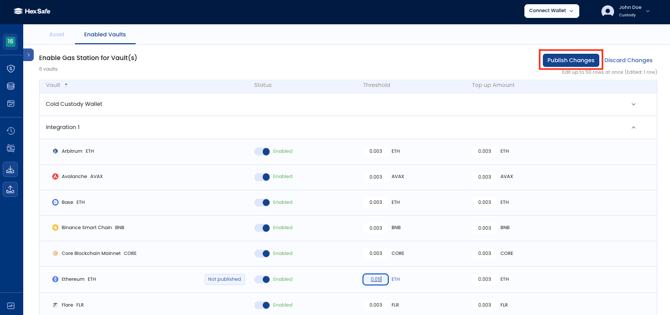
- Select the chain, then enter the values for "Threshold" and "Top Up Amount".
- Once completed, click "Publish Changes" and confirm the transaction in your Hex Safe Mobile App.
3. Withdrawing Funds from the Gas Station Vault
- Initiate a withdrawal transaction from the Gas Station Vault.
- The transaction follows the same approval quorum as your Hex Safe Enterprise.
- Once approved, the assets are transferred to the designated address.
- For a detailed guide on withdrawing assets from your Vault, click here.
IMPORTANT: The Threshold acts as a trigger. "When your Vault balance reaches or falls below the Threshold, the Gas Station will automatically transfer the Top Up Amount" to relevant Vaults. No manual approval is needed.
What chains are supported by the Gas Station
The Gas Station supports the following blockchains:
- Arbitrum
- Avalanche
- Base
- Binance Smart Chain
- Core Blockchain Mainnet
- Ethereum
- Flare
- Kaia
- Linea
- Optimism
- Polygon
- Solana Mainnet
- Songbird
- Tron
- XRPL
Disable Gas Station for selected Vaults
To disable a specific Vault, follow these steps:
- Go to your dashboard and click the "View" button, then select "Enable Vaults."
- Choose the Vault you wish to disable and click "Edit."
- You will see the enable/disable button. Simply toggle it to disable the Vault.
- Once completed, click "Publish Changes" and confirm the transaction in your Hex Safe Mobile App.