
Available on Android (Old Version) and iOS for all users of Hex Safe.
Hex Safe Mobile App Features
Login Steps
View Vault
Generate Deposit Address
See transactions in-flight
Important notes:
-
Your user account has already been created in Hex Safe.
-
You have received an email invitation to activate your account.
-
The Hex Safe Mobile App is installed on your mobile device.
Hex Safe Mobile App Features
Through the Hex Safe Mobile app, you’ll be able to:
- Confirm transaction initiations (For Initiators).
- Authorize transaction approvals (For Approvers).
- Access multiple enterprise dashboards.
- Speed up transaction-related actions via Biometric Authentication.
- Receive instant notifications related to pending actions.
- Extra security layer using Face ID (For iOS users only).
- Login with “Passkey”
- Immediately review pending actions that need to be confirmed or approved.
Login Steps
This section outlines the steps required to log in to the Hex Safe platform using the mobile app for secure authentication.
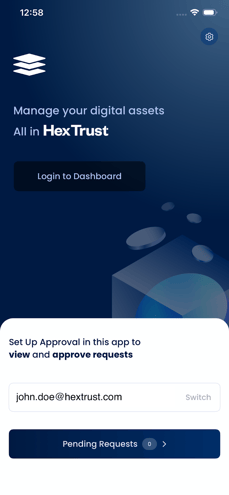
- Open the Mobile App. and tap the
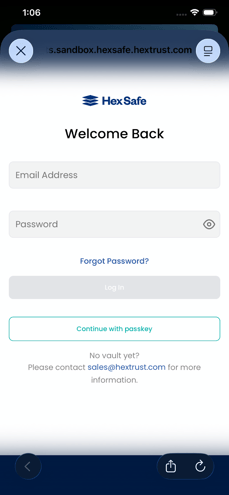
“Login to Dashboard”. - Enter the email address and password associated with your Hex Safe user account, then tap “Login”. You may also use the “Continue with Passkey” feature to log in.
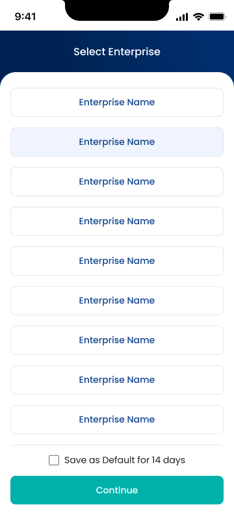
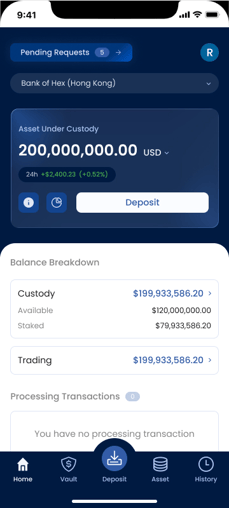
- Select your “Enterprise”.
If you haven’t connected your account, please follow the steps below:
- From the login page tap “Connect Account”.
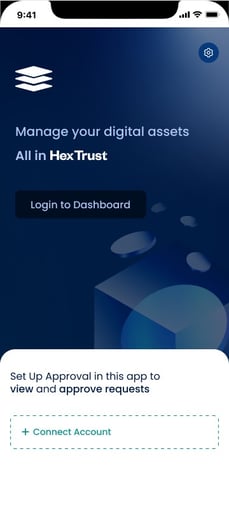
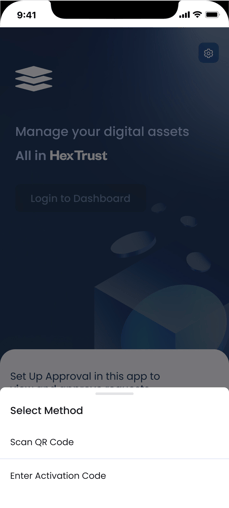
- Select your preferred method:
- "Scan QR Code” or
“Enter Activation Code”.
- "Scan QR Code” or
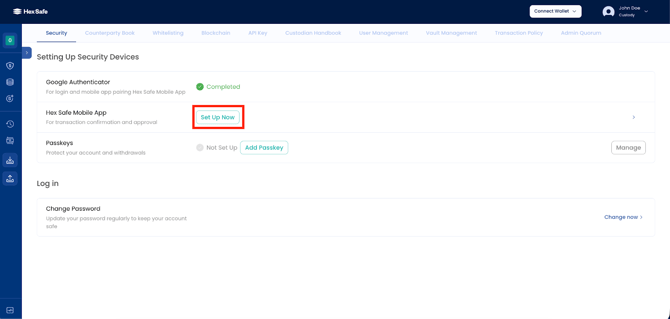
- Login to Hex Safe on the web.
- Go to Settings > Security, then click Set Up Now in the Hex Safe Mobile App section.
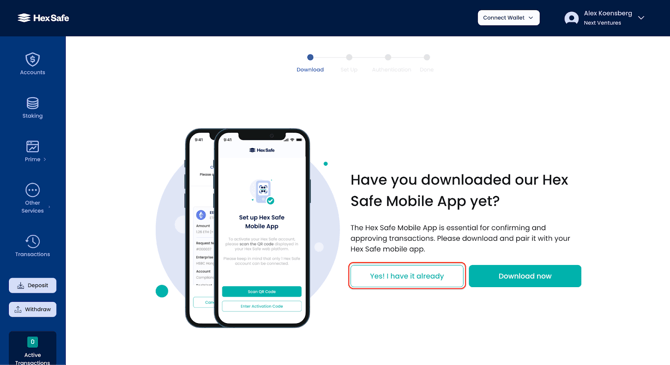
- If you already have the Hex Safe Mobile App installed, click on “Yes! I have it already” otherwise, tap on “Download now” and follow the instructions to install the App.
- Once the App. is ready, open it.
- Tap on “Show QR Code” and scan the QR code on your web browser.
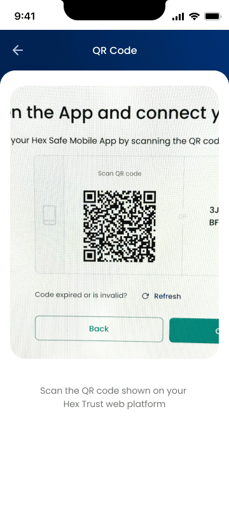
- Alternatively, you can manually
type the 20 alphanumeric
characters code on your
mobile device.
- Alternatively, you can manually
- Set up a passcode for your Hex Safe Mobile App and confirm that the same confirmation code appears on both the web browser and the mobile app.
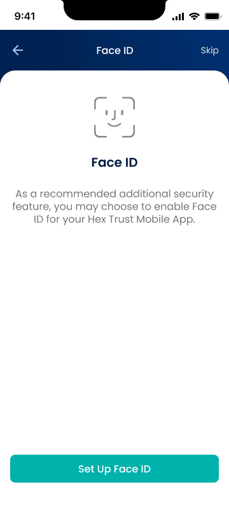
- As an additional security measure,
we recommend that you enable
Face ID for the Hex Safe Mobile App.
- As an additional security measure,
- Finally, verify your identity on the web browser using Google Authenticator to successfully set up your Hex Safe Mobile App.
View Vault
Covers how assigned vaults are displayed and how users can access vault-level information.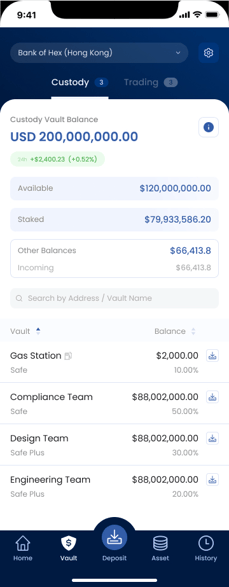
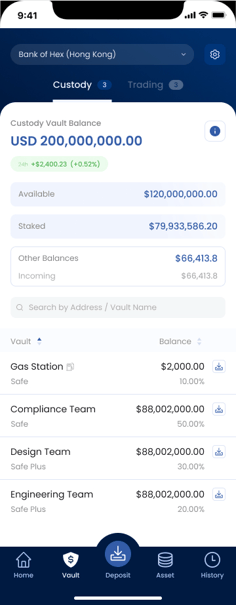
- From the dashboard tap “Vault”.
- You will be able to see your Vaults including the available balances.
- You can sort it by alphabetical order or balances available by clicking the arrow buttons.
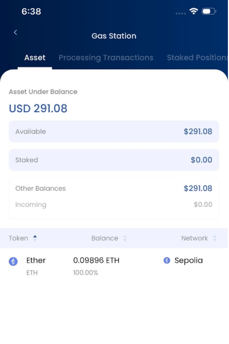
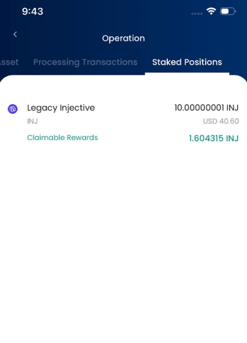
- Each Vault has corresponding assets, balances, transactions and staked positions.
 .
. 
Generate Deposit Address
This outlines the process for generating deposit addresses for supported assets within a vault.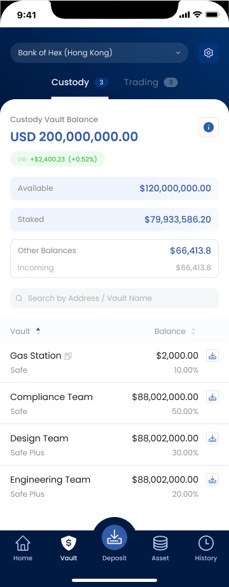
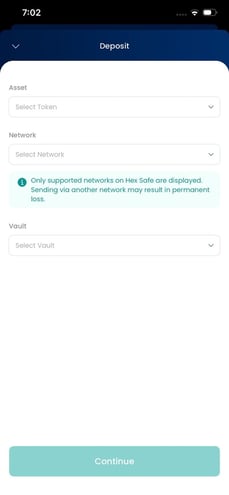
- To do this, simply tap the “Deposit”
button in the dashboard. - Choose the asset, network, and vault where you want to initiate the transaction and tap “Continue” to proceed.
- A “QR Code” and “Deposit address” will appear.
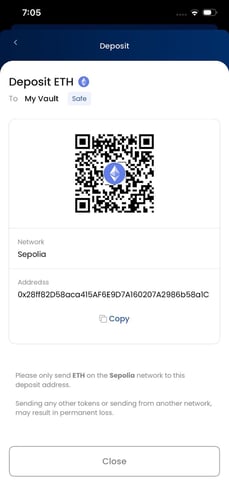
- You can use the generated data to receive your funds.
See transactions in-flight
Explains how users can monitor transactions that are pending or currently in progress.
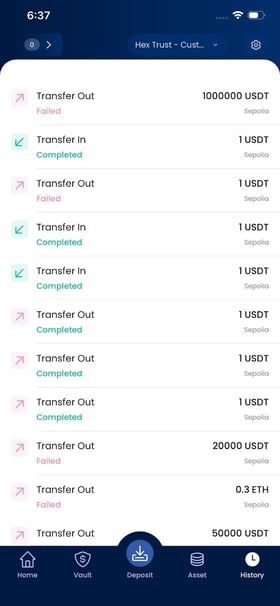
- From the dashboard, tap “History” and locate the transaction you want to review.
 .
. 
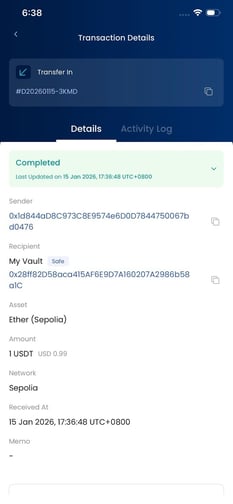
- On the “Details Tab”, you will the following:
- Transaction Reference
- Status of the transaction
- Sender
- Recipient
- Asset
- Amount
- Network
- Estimated Fee
- Initiated by
- Date and Time
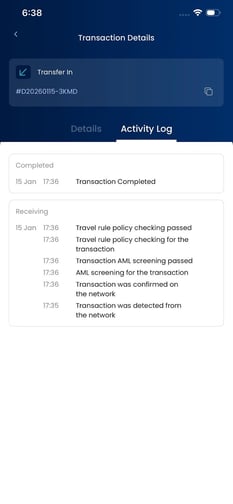
- On the “Activity Log”, you will see the process, time, reason and status of the transaction.
 .
. 
.